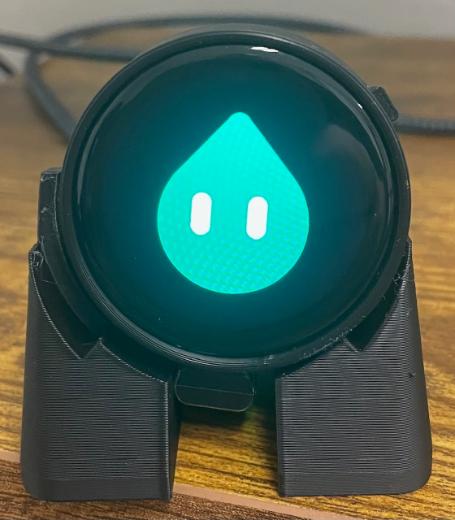
ESP32-S3-Touch-LCD-1.46
Round, 1.46" across the screen. It comes as a bare board, for the printed case.
Don't have one? Buy it on Amazon As an Amazon Associate I earn from qualifying purchases.
Put the desk display's firmware on a Waveshare ESP32-S3-Touch-LCD-1.46 or ESP32-S3-Touch-AMOLED-1.8 from this page, with nothing to install on your computer.
idf.py monitor.Checking whether this browser can install…
This browser can't install firmware. Installing needs Web Serial, which this browser doesn't have. Open this page in Chrome, Edge or Firefox (151 or newer) on a computer.
This page isn't on a secure (HTTPS) address. Browsers let a page reach a
USB device only over HTTPS, or from the computer itself (localhost). Open this page from
its https:// address.
Round, 1.46" across the screen. It comes as a bare board, for the printed case.
Don't have one? Buy it on Amazon As an Amazon Associate I earn from qualifying purchases.
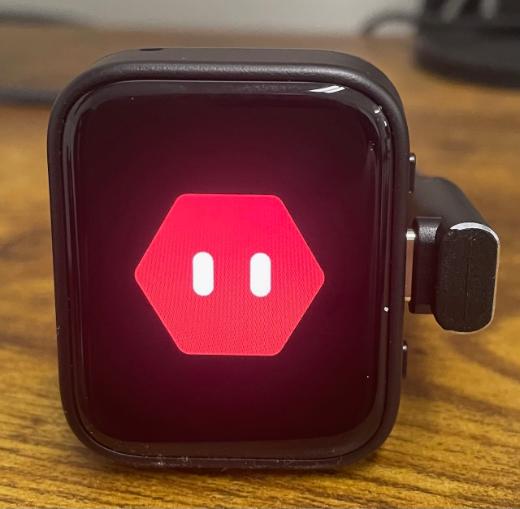
Rectangular, upright, in its own black case. Its name is on the label on its back.
Don't have one? Buy it on Amazon As an Amazon Associate I earn from qualifying purchases.
Desk-Setup-XXXX. Join it with your phone and continue at
step 4 of the setup guide: add your Wi-Fi and the bridge
address, then approve the device in the bridge's admin page. If the setup page doesn't open
by itself on the phone, open http://192.168.4.1 in the phone's browser.An install keeps what the device has saved: its Wi-Fi networks, the bridge address and its key. Erase device clears all of it for a clean start: for the first install over Waveshare's demo firmware, or to set a device up again from scratch. An erased device then needs its Wi-Fi from your phone and approving again in the admin page.
idf.py monitor, a serial
terminal, or another tab with this page.